

The short answer
What a background shadow remover should change
A background shadow remover targets darkness that belongs to the wall, floor, backdrop, or surrounding surface rather than to the subject itself. The useful result is not simply a brighter picture. It is a more even background with the subject outline, colors, texture, and believable placement still intact. That distinction matters for product listings, portraits, property photos, scanned pages, and phone pictures that cannot be retaken.
Start with the complete original photo and identify where the shadow begins and ends. A soft contact shadow under a bottle or shoe helps explain scale; a long phone silhouette across the wall usually does not. Shadow Remover's Background / Document mode is designed for this kind of scene. Upload one supported image, compare the result with the original, and lower the repair strength when the subject edge or surface texture starts to look artificial.
Identify the scene
First decide whether the shadow belongs to the background
Background shadows are usually cast by something between the light and the surface: a person, phone, camera, tripod, window frame, or the photographed object itself. They can appear on a wall behind a portrait, on a tabletop under a product, or across a page photographed with a phone. Their shape often has a clear direction and a softer or harder edge than the subject. The same picture can contain both a removable background shadow and a useful contact shadow, so treating every dark pixel as a problem is risky.
Use the subject as your reference. If the dark area follows the outline of the product on the table, it may be a grounding shadow. If it continues beyond the outline onto a clean wall, it is more likely a cast shadow. A phone shadow crossing the background can often be reduced without changing the object, but a hand shadow over a face is a different retouching task. Separating those cases gives the model a clearer boundary and gives you a better review question: did the surface become more even while the subject stayed recognisable?
- Wall or floor cast shadow: a silhouette, stripe, or broad patch behind the subject.
- Phone or camera shadow: a device outline that lands on a wall, table, or photographed page.
- Product backdrop shadow: a hard drop shadow that makes a catalog image look uneven.
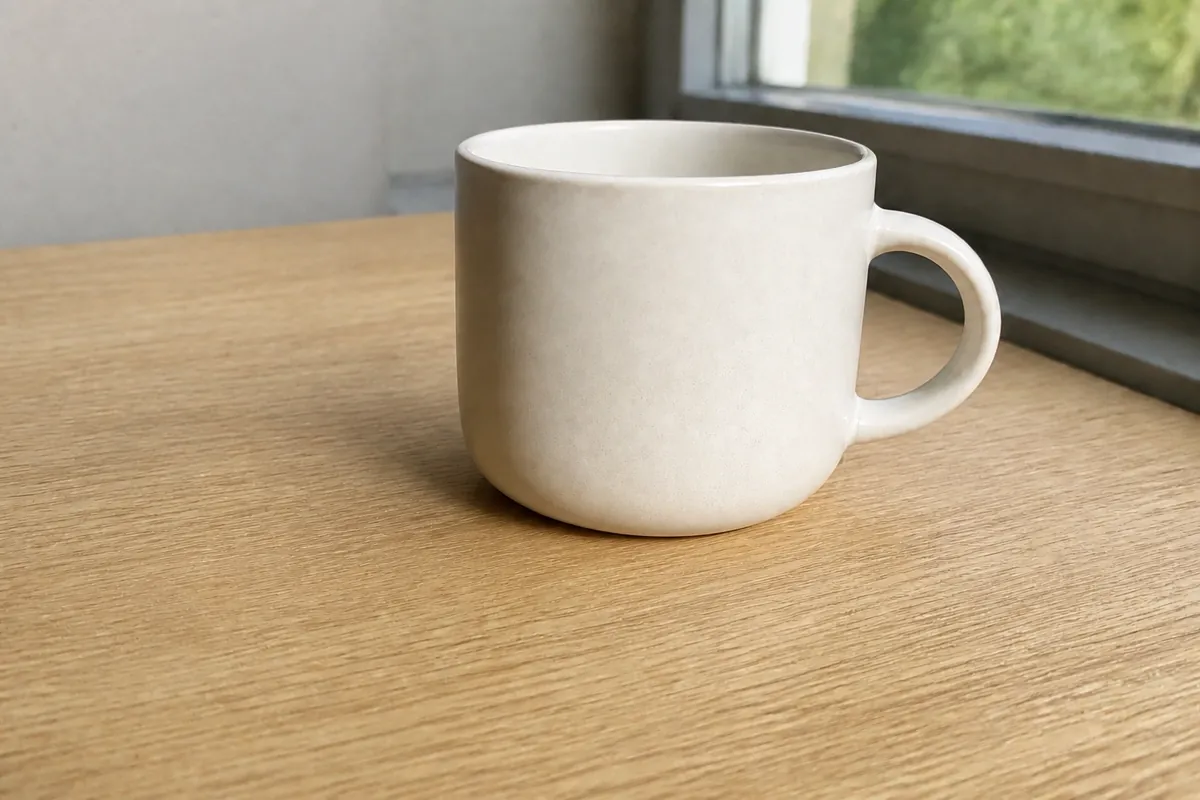
- Contact shadow: a small soft dark area under the subject that often should remain.
- Subject lighting: shade on skin, hair, or fabric that needs portrait or manual retouching rather than background cleanup.
Know the trade-offs
Why background shadow removal can look fake
A shadow carries information about light direction, distance, material, and depth. Removing it changes more than brightness. On a plain wall, the tool may need to reconstruct a smooth color transition. On a wood table, it must avoid breaking grain lines. On a tiled floor, it should not bend the repeating pattern. A product label, hair strand, or transparent edge can be mistaken for a dark background detail when the boundary is tight.
The strongest setting is not always the best setting. A high correction can leave a bright halo around a dark object, erase the base of a product, or make a portrait look pasted onto the wall. Start with a balanced repair, inspect the result at the size where it will be published, and then decide whether a stronger pass is worth the risk. Keep the original file so you can compare a lighter setting or choose not to use the edit.
- Check for halos where the subject meets the wall or floor.
- Check repeating textures such as wood grain, tiles, bricks, and fabric.
- Check text, labels, hair, straps, and transparent edges near the correction.
- Check whether the product still appears to touch the surface instead of floating.
- Compare the saved download, because compression can reveal artifacts that are subtle in the preview.
Prevent the next shadow
How to photograph a cleaner background next time
Editing is useful when a moment cannot be repeated, but lighting changes often save more time than a stronger correction. Move the light source to the side and above the subject instead of pointing a small flash directly at a nearby wall. Give a product more distance from the backdrop so its shadow falls behind it rather than forming a hard outline. A large window with a sheer curtain, a softbox, or a bounced lamp creates a broader transition that is easier to reduce without damaging edges.
Watch your own position. A phone or camera close to the subject can block the main light and place a recognisable silhouette across the background. Step to the side, raise the light, or use a timer so the device is no longer between the source and the surface. For documents, keep the page flat, use even light from both sides, and avoid a bright lamp above one corner. These changes do not guarantee a perfect frame, but they reduce the amount of missing information the editor has to invent.
- Turn off direct phone flash when it creates a hard wall silhouette.
- Increase the distance between the subject and the wall or backdrop.
- Use a larger, softer light source and keep the direction consistent across a photo set.
- Keep the full shadow boundary in frame instead of cropping it away.
- Save the original capture before any export or compression.
Choose the right correction
Background shadows and subject shadows need different decisions
Use this quick distinction before you upload. It prevents a background-focused correction from flattening a face, product texture, or intentional depth.
| Situation | Likely target | What to preserve | Review first |
|---|---|---|---|
| Phone silhouette on a wall | Background cast shadow | Subject outline and wall color | Halo around the subject |
| Long product shadow on a table | Backdrop or cast shadow | A small contact shadow | Whether the item still feels grounded |
| Shadow across a face | Subject lighting | Skin texture, eyes, and likeness | Facial edges and expression |
| Dark strip at a page edge | Background / document shadow | Letters, lines, and page boundary | Text and warped paper texture |
| Shadow in transparent PNG artwork | Edge or background shadow | Transparency and intended outline | Dark fringe against a new background |
A careful workflow
How to use a background shadow remover
Shadow Remover keeps the workflow focused: one image, one correction, and a before-and-after decision before download.
- 01
Upload the complete source
Choose one clear JPG, PNG, or WebP image up to 10MB. Avoid a screenshot of a compressed preview when the original camera file is available.
- 02
Select Background / Document
Use the background-focused mode for walls, floors, backdrops, phone silhouettes, and page edges. Auto is a reasonable starting point for a mixed scene.
- 03
Start with balanced repair
Increase strength only when the unwanted background shape is still obvious. A restrained correction usually protects texture and contact depth better than an aggressive pass.
- 04
Compare the whole frame
Drag the before-and-after divider and inspect the subject, shadow boundary, repeated patterns, text, and the area where the object touches the surface.
- 05
Download or keep the original
Download only when the result still looks believable at its intended size. If the shadow is part of the subject or the correction invents detail, keep the original and try a different source.
Before you publish
A five-point background shadow review
A result can look clean at a glance and still fail when it is cropped, compressed, or placed on a different page color. Use this short review every time.
- The wall, floor, or backdrop is more even, but its texture has not been smeared.
- The subject edge has no bright halo, dark fringe, or missing corner.
- A small contact shadow remains when it is needed to show placement and depth.
- Labels, text, hair, straps, and transparent edges still match the original.
- The downloaded file looks right in the destination layout, not only in the tool preview.
Background shadow FAQ
Questions about removing shadows from a photo background
These answers cover the most common background, product, wall, floor, and phone-shadow decisions.
What is a background shadow remover?
It is a photo-editing workflow that reduces unwanted darkness cast onto a wall, floor, tabletop, backdrop, or page surface. It should preserve the main subject and keep useful depth instead of brightening every dark pixel.
Can I remove a phone or camera shadow from a wall photo?
Usually, yes. Upload the complete photo and use Background / Document mode. Compare the wall, the subject outline, and the area where the subject meets the surface. A very dark silhouette may still leave a soft patch because the original wall detail was hidden.
Can I remove a product background shadow without making the product float?
Yes, but keep a small soft contact shadow when it explains placement. Removing the entire base shadow can make a product look cut out. Inspect the result against the background color used in your listing.
Should I remove a shadow across a face with a background tool?
No. A hat, hand, or side-light shadow on skin belongs to the subject lighting. Use a portrait-focused workflow and review identity, texture, and expression instead of treating the face as a flat background.
Why does a strong background shadow leave a halo?
The shadow may overlap the subject edge, or the dark region may hide the original texture. Strong repair can brighten nearby pixels too aggressively. Lower the strength, use a clearer source, and compare the saved result at its final size.
Does the page support PDF or batch shadow removal?
This article links to the image workflow, which accepts one JPG, PNG, or WebP at a time. PDF pages and batch processing are outside this page's image-only contract.