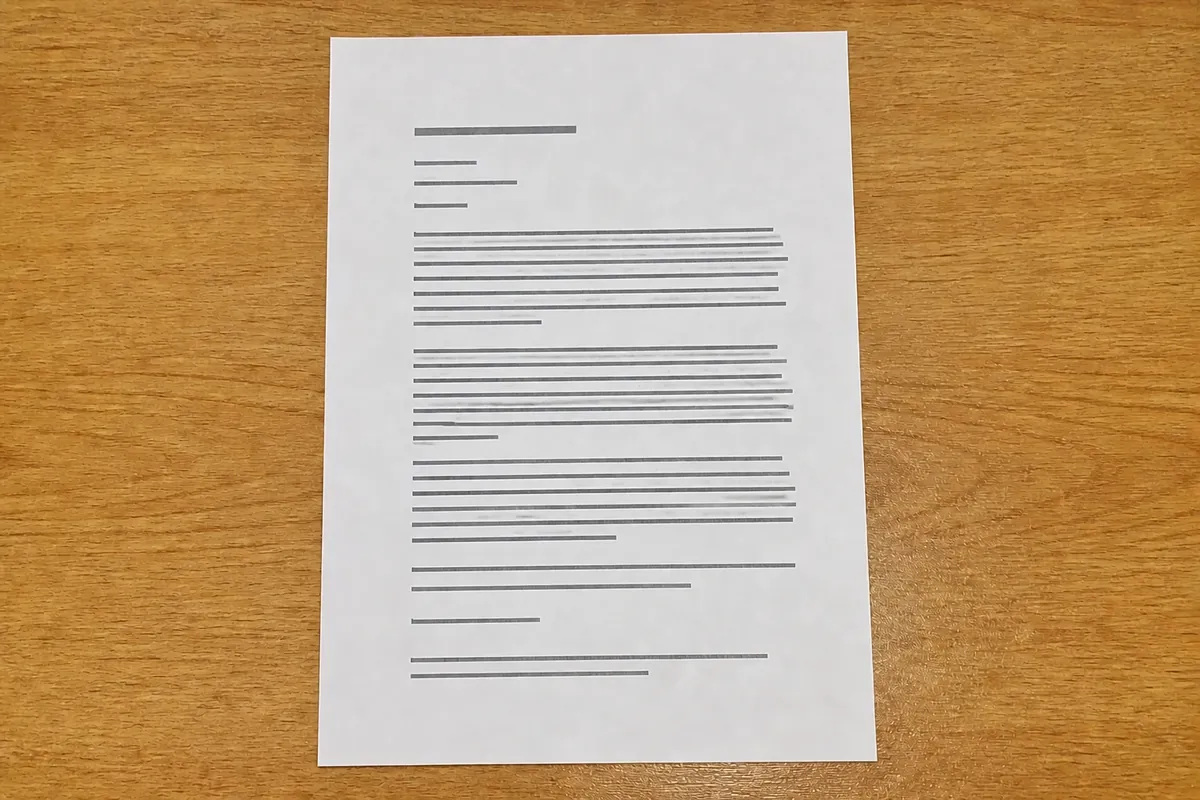


IMAGE Format-aware shadow repair

Remove Shadow from Image Online

Remove shadow from image files when a phone, object, page edge, or hard light patch distracts from the content. Upload a JPG, PNG, or WebP, compare the original with the repaired result, and review the file before downloading.

  • JPG, PNG, and WebP
  • Transparent edges stay in view
  • Compare before and after

Upload an image to remove its shadow

Drag & drop or click to upload

Supports JPG, PNG, and WebP · Max 10MB Remove shadow from image online in JPG, PNG, or WebP. Compare before and after, preserve transparent edges, and download a cleaner result.
Advanced settings

Try a format example:

image shadow remover examples

See how image shadow removal handles common formats

The same repair workflow can accept JPG, PNG, and WebP files, but the right review changes with the format. Check transparency, text edges, compression, and the final download instead of assuming every image should look identical.

JPG-style photo before edge shadow cleanup
JPG-style photo after edge shadow cleanup
Before After

IMAGE

JPG shadow cleanup

JPG is convenient for photographs but repeated exports can soften fine detail. Compare letters, hair, and the shadow boundary before downloading a repaired copy.

Drag the divider to compare before and after. Use the arrow keys for precise movement.

PNG-style portrait before shadow cleanup
PNG-style portrait after shadow cleanup
Before After

IMAGE

PNG with transparent edges

PNG is useful when a transparent edge or text detail matters. Keep natural contact shading where it explains the object, then inspect the edge against a light background.

Drag the divider to compare before and after. Use the arrow keys for precise movement.

WebP-style document image before page-edge shadow cleanup
WebP-style document image after page-edge shadow cleanup
Before After

IMAGE

WebP for a smaller download

WebP can keep a compact file size for web use. Check small text, gradients, and dark transitions after processing so compression does not hide a remaining shadow.

Drag the divider to compare before and after. Use the arrow keys for precise movement.
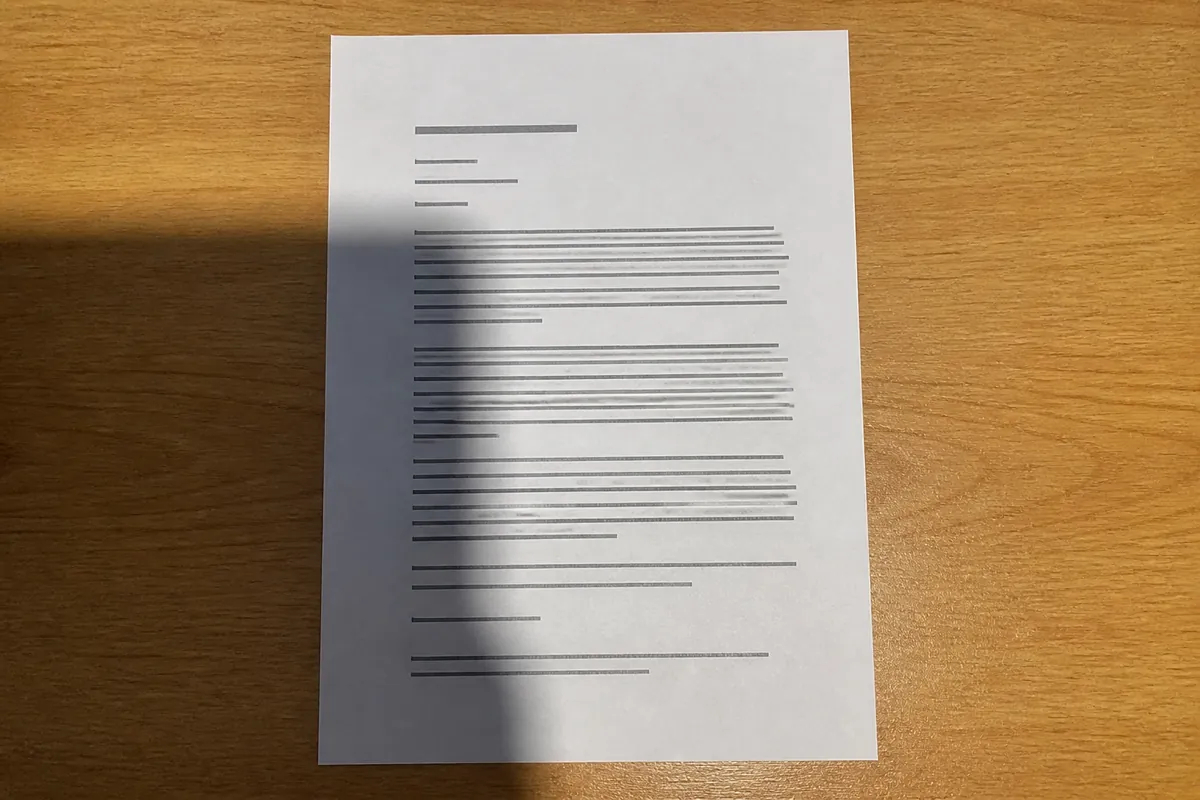
How to use an image shadow remover

How to remove a shadow from an image without changing its format

A dependable image shadow workflow starts with the original file, keeps the intended format in mind, and ends with a before-and-after check. The tool processes one image at a time so you can inspect edge detail before downloading.

  1. 01

    Start with the original file

    Upload one JPG, PNG, or WebP image up to 10MB. Use the clearest source available so the repair has real edge and texture information.

  2. 02

    Choose a repair mode

    Use Auto for a mixed image, Face & Portrait for uneven portrait light, or Background / Document for page edges and broad background shadows.

  3. 03

    Review format-sensitive details

    Compare the original and result. Check transparent-looking edges, letters, hair, gradients, contact shadows, and any fine texture near the corrected area.

  4. 04

    Download only after checking

    Select Download result when the image still looks natural. The tool does not accept PDF, HEIC, or batch uploads in this image-only workflow.

Get a cleaner image result

Prepare an image for cleaner shadow removal

A complete frame and a visible shadow boundary help the model distinguish unwanted darkness from text, hair, transparent edges, or a natural contact shadow. Use the highest-quality source available and judge the downloaded file, not only the preview.

Use the largest clear source

A sharp original gives the repair more real pixels to inspect. Avoid an already compressed screenshot when the camera file is available.

Keep the whole shadow in frame

Show the subject and the full shadow boundary. Tight crops can hide whether a dark edge belongs to the object or the background.

Treat transparent edges carefully

For PNG work, compare the edge against a contrasting background. A dark fringe can be a shadow, a halo, or an intended outline.

Check the saved format

After processing, inspect the downloaded file in the place where it will be used. WebP size and JPG compression can change how subtle shadows appear.

What the image changes

What changes when you remove a shadow from an image

The tool targets unwanted dark regions while keeping the image structure intact. Use the comparison control to decide whether the result is cleaner, whether a lighter setting is safer, or whether the original should remain unchanged.

Format stays part of the workflow

JPG, PNG, and WebP are accepted as image inputs. The page does not promise PDF conversion or batch processing.

Transparent edges need a second look

A shadow next to transparency can look like a dark halo. Compare the edge at more than one background color before publishing the file.

Resolution cannot be invented

The tool can reduce unwanted darkness, but it cannot restore texture that was never captured inside a clipped shadow.

Natural depth can stay

A small contact shadow can explain shape and placement. Keep it when removing every dark pixel would make the image look cut out.

Image Shadow Remover FAQ

Questions about removing shadows from images

Answers about JPG, PNG, WebP, transparency, resolution, output quality, unsupported files, privacy, and reviewing a repaired image.

Can I remove a shadow from a JPG image?

Yes. Upload one JPG up to 10MB, choose a repair mode, compare the result with the original, and download it after checking detail and compression.

Does the tool support PNG transparency?

PNG files are accepted. The tool reduces unwanted shadow regions, but you should inspect transparent-looking edges against a contrasting background to catch halos.

Can I remove a shadow from a WebP image?

Yes. WebP is accepted as an input and the result can be downloaded for web use. Check small text, gradients, and dark transitions after processing.

Will removing a shadow change the image format?

The workflow is image-only and supports JPG, PNG, and WebP. Review the downloaded result and its extension before using it in another application.

Can I upload a PDF or HEIC file?

No. PDF, HEIC, and batch uploads are outside this page's image-only input contract. Convert the file to a supported image format first if you have permission to do so.

Will the original resolution be preserved?

The service works from the uploaded image and returns a processed image, but no automated correction can recreate detail that a low-resolution or clipped source never contained.

Is the image shadow remover free to use?

You can open the tool and preview the workflow online. Sign-in and available credits may be required for the real processing request and download.

Are uploaded images stored?

The selected file stays in your browser until you submit or remove it. Submitted images are sent to the configured processing provider and are not written to Shadow Remover account, order, or usage tables. Review the Privacy Policy for provider retention details.

Ready to clean an image?

Remove the distracting shadow and keep the image usable

Upload one image, select the repair settings that fit the scene, and compare the result before downloading. Shadow Remover keeps the workflow focused on a cleaner file, not a promise to flatten every natural shadow.

Need more credits?

Keep removing shadows

Your current credits are used up. Choose a plan below to continue editing your photos.

A plan gives you more room to

  • Remove unwanted shadows from more photos
  • Compare every result before you download
  • Keep your original and download the finished result

Use credits to remove unwanted shadows from clear photos. Every shadow-removal task currently uses 2 credits.

Choose what fits your workflow

Get more editing credits

View all plans

Basic

The easiest way to get started with regular photo shadow removal.

$9.99/ month
100 creditsUp to 50 shadow-removal tasks
Renews monthly until canceled

Max

The largest monthly allowance for high-volume photo cleanup and long-term projects.

$79.99/ month
1,600 creditsUp to 800 shadow-removal tasks
Renews monthly until canceled

Sign in to Shadow Remover

Access your image-processing usage, account, and billing history.

Your photo is sent for processing only after you submit it.